Dalmore 77 Verification for Withdrawals: What Documents Do You Need?
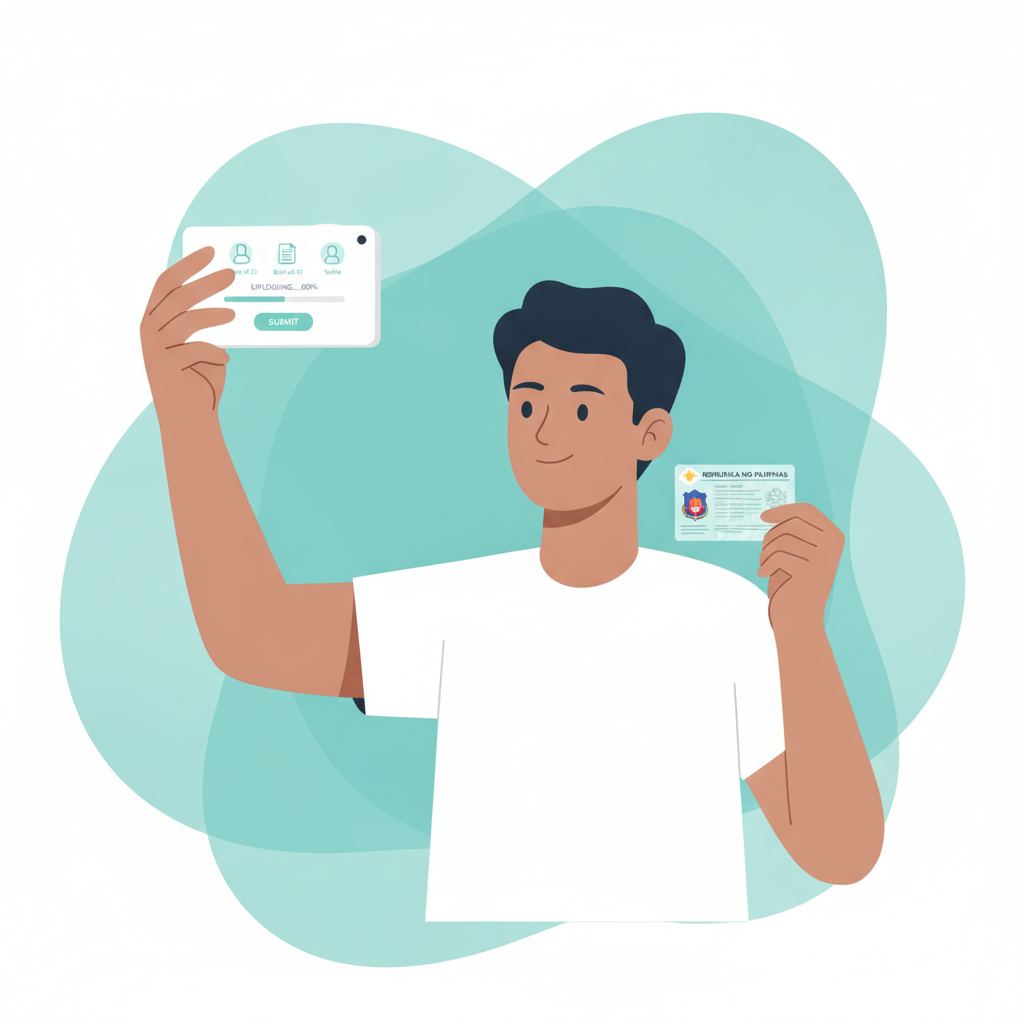
Dalmore 77 Verification for Withdrawals: What Documents Do You Need?
When you request your first cashout from Dalmore 77, you may be asked to verify your identity before the withdrawal is processed. This step can feel like a roadblock when you just want your winnings in your GCash or Maya wallet, but understanding what documents you need and how to submit them correctly will help you get paid faster.
This guide covers why Dalmore 77 requires verification, which documents are accepted, how to upload them through the mobile app or website, and what to expect if your submission is rejected or delayed.
Why Dalmore 77 Asks for ID and Proof of Payment Before First Cashout
Dalmore 77 typically asks players to complete identity verification before processing a first withdrawal. This is standard practice for online casinos and sportsbooks operating in the Philippines and serves several purposes:
Account security. Verification confirms that the person withdrawing funds is the same person who registered the account. This protects your balance from unauthorized access if someone else gains access to your login credentials.
Payment method ownership. By requiring proof that you own the GCash account, Maya wallet, or bank account linked to your Dalmore 77 profile, the platform ensures funds are sent to the correct recipient and not a stolen or borrowed payment method.
Regulatory compliance. Even though Dalmore 77 does not advertise a specific Philippine license, many online gaming operators follow international anti-money-laundering and know-your-customer (KYC) protocols to align with broader financial regulations.
Age verification. Dalmore 77 is restricted to players aged 21 and over. Submitting a valid government-issued ID confirms you meet the minimum age requirement.
Most players only need to verify their account once. After your documents are approved, future withdrawals to the same payment method usually process without additional checks—unless you change your e-wallet, update your bank details, or request an unusually large cashout.
Accepted Documents: Valid ID, Selfie, GCash/Maya Screenshot, Utility Bill
Dalmore 77 generally asks for a combination of documents to confirm your identity and payment method ownership. The exact requirements may vary depending on your withdrawal amount, chosen payment channel, and account history, but the most commonly requested items are:
Valid Government-Issued Photo ID
You will need to submit a clear, readable image of one of the following:
- Philippine passport
- Driver's license
- UMID (Unified Multi-Purpose ID)
- PhilHealth ID
- SSS ID
- Postal ID
- Voter's ID
- PRC (Professional Regulation Commission) ID
Your ID must be current and not expired. All four corners of the card or document page should be visible in the photo, and text—especially your full name, date of birth, and ID number—must be legible. Avoid glare, shadows, or blurry shots taken in low light.
Selfie Holding Your ID
Some players are asked to provide a selfie in which they hold their ID next to their face. This "proof of life" photo confirms that the person submitting documents is the same individual pictured on the ID.
When taking this selfie:
- Use good lighting so both your face and the ID details are clear.
- Hold the ID close enough that the text can be read, but not so close that your face is cut off.
- Do not wear sunglasses, hats, or masks that obscure your features.
- Make sure the photo is in focus and not tilted at an extreme angle.
Proof of Payment Method Ownership (GCash, Maya, or Bank Account)
Because Dalmore 77 processes withdrawals through GCash, Maya, bank transfer via InstaPay, or PESONet, you may be asked to prove you own the account or wallet receiving the funds.
For GCash or Maya:
Take a screenshot of your e-wallet home screen showing your full name and mobile number. The screenshot should clearly display the GCash or Maya branding and your registered account details. Crop out unrelated apps or sensitive information (account balance is usually fine to show or hide, depending on your preference), but keep the essential identifying elements visible.
For bank transfers:
If you plan to withdraw via InstaPay or PESONet, you may be asked for a screenshot or photo of your bank statement, passbook, or mobile banking profile page showing your full name and account number. The document should be recent (typically issued within the last three months).
Proof of Address (Utility Bill or Bank Statement)
In some cases—especially for larger cashouts or if your ID does not show a current address—Dalmore 77 may request proof of residence. Acceptable documents include:
- Electricity, water, or internet bill (Meralco, Maynilad, Manila Water, PLDT, Converge, etc.)
- Bank statement or credit card statement
- Barangay certificate or certification of residency
The document must display your full name and current residential address and should be dated within the last three months. A scan or clear photo is acceptable; handwritten notes or heavily redacted bills may be rejected.
How to Upload Documents Through the Mobile App or Site
Dalmore 77 offers two main channels for submitting verification documents: the mobile app (Android APK) and the website (accessed through any mobile browser). The upload process is similar on both.
Via the Dalmore 77 Mobile App
- Log in to the Dalmore 77 app using your registered mobile number or username and password.
- Navigate to the Account or Profile section, usually accessible through a menu icon in the top-right or bottom navigation bar.
- Look for a Verification, KYC, or Documents tab or button.
- Tap Upload or Add Document.
- Select the document type from the dropdown menu (e.g., "Government ID," "Selfie with ID," "Proof of Payment").
- Choose whether to take a new photo using your phone's camera or upload an existing image from your gallery.
- Review the image to confirm it is clear and all required information is visible.
- Tap Submit or Upload.
You can typically upload multiple documents in one session. After submission, you should see a confirmation message or status indicator showing "Pending Review" or "Under Verification."
Via the Dalmore 77 Website (Mobile Browser)
- Open your mobile browser (Chrome, Safari, etc.) and visit the Dalmore 77 login page.
- Enter your credentials to access your account.
- Tap the Menu or Profile icon, then select Account Verification or Upload Documents.
- Click the Choose File or Browse button next to each document type.
- Select the photo or scan from your phone's storage.
- Confirm the file is correct, then click Upload or Submit.
If you encounter an error message such as "File too large" or "Invalid format," check that your images are saved as JPG, JPEG, or PNG and are under the maximum file size (usually 5 MB per file). If your photo is too large, use a free compression tool or resize the image before uploading.
How Long Verification Takes and What Happens If Documents Are Rejected
Typical Processing Time
Once you have submitted all required documents, Dalmore 77's verification team will review them. Processing times vary based on the volume of requests and the completeness of your submission, but most players receive a decision within:
- 24 to 48 hours for straightforward cases with clear, complete documents.
- Up to 72 hours during weekends, holidays, or peak periods.
You may receive an email or in-app notification confirming that your account has been verified. In some cases, your withdrawal will simply change status from "Pending Verification" to "Processing" or "Approved" without a separate message.
Common Reasons for Rejection
If Dalmore 77 rejects your documents, you will usually be notified via email or in-app message. Common reasons include:
- Blurry or unreadable images. Text on your ID or screenshot is too small, out of focus, or obscured by glare.
- Expired ID. The document you submitted is no longer valid.
- Partial document. Corners are cut off, or essential information (name, date of birth, ID number) is missing.
- Mismatch between name on ID and account details. The name registered on your Dalmore 77 account does not exactly match the name on your ID.
- Proof of payment does not show account ownership. The GCash or Maya screenshot does not clearly display your full name and number, or the bank statement is older than three months.
- Selfie does not match ID photo. Facial features are obscured, or the ID in the selfie is illegible.
What to Do If Your Documents Are Rejected
If your submission is declined, check the rejection notice for specific feedback. Dalmore 77 support may indicate which document was problematic or what information is missing.
Retake the photo in better lighting. Use natural daylight or a bright indoor lamp, avoid shadows, and ensure your camera lens is clean.
Confirm all four corners are visible. Lay the ID flat on a contrasting background (dark surface for light-colored IDs, light surface for dark IDs) and photograph from directly above.
Use a different ID if the first one is expired or damaged. If your driver's license has expired, try your passport or UMID instead.
Double-check your account details. Make sure the full name on your Dalmore 77 profile exactly matches the name on your ID. If there is a typo, contact customer support before resubmitting documents.
Upload higher-resolution images. If your screenshots are small or pixelated, check your phone's screenshot settings or use your device's native camera instead of a third-party app.
After correcting the issue, log back into the app or website, navigate to the verification section, and upload the revised documents. The review process will begin again, usually with a similar 24–72 hour timeframe.
Pending Withdrawal While Verification Is Under Review
If you submitted a Dalmore 77 withdrawal request before completing verification—or if the platform flagged your cashout for review mid-process—your pending withdrawal will remain on hold until your documents are approved.
You can check the status by:
- Logging into your Dalmore 77 account.
- Going to Transaction History, Withdraw, or My Cashouts.
- Looking for your recent request and its current status: "Pending Verification," "Under Review," "Processing," or "Approved."
Do not cancel and resubmit your withdrawal unless customer support advises you to do so. Canceling a pending request may reset the queue or cause confusion if your verification is already in progress.
If more than 72 hours have passed with no update, reach out to Dalmore 77 support via live chat, email, or the in-app help center. Have your account username, registered mobile number, and withdrawal reference number ready to speed up the inquiry.
21+ and Responsible Gambling Reminder
Dalmore 77 is strictly for players aged 21 and over. By submitting identity documents, you confirm that you meet this legal age requirement.
Gambling should remain a form of entertainment, not a way to solve financial problems. Set deposit limits that fit your budget, take breaks, and reach out for help if betting feels out of control. Several Philippine and international organizations offer free, confidential support for problem gambling.
Verification may seem like an extra step, but completing it promptly and correctly ensures your Dalmore 77 withdrawals to GCash, Maya, InstaPay, or PESONet go through smoothly every time. Keep your submitted documents on file for future reference, and update your proof of payment if you switch e-wallets or bank accounts to avoid delays on your next cashout.